User interface
A brief overview of the Dashboard interface is provided below.
BySoft Insight is designed to be as intuitive as possible so that with a quick look, it is possible to understand how it works.
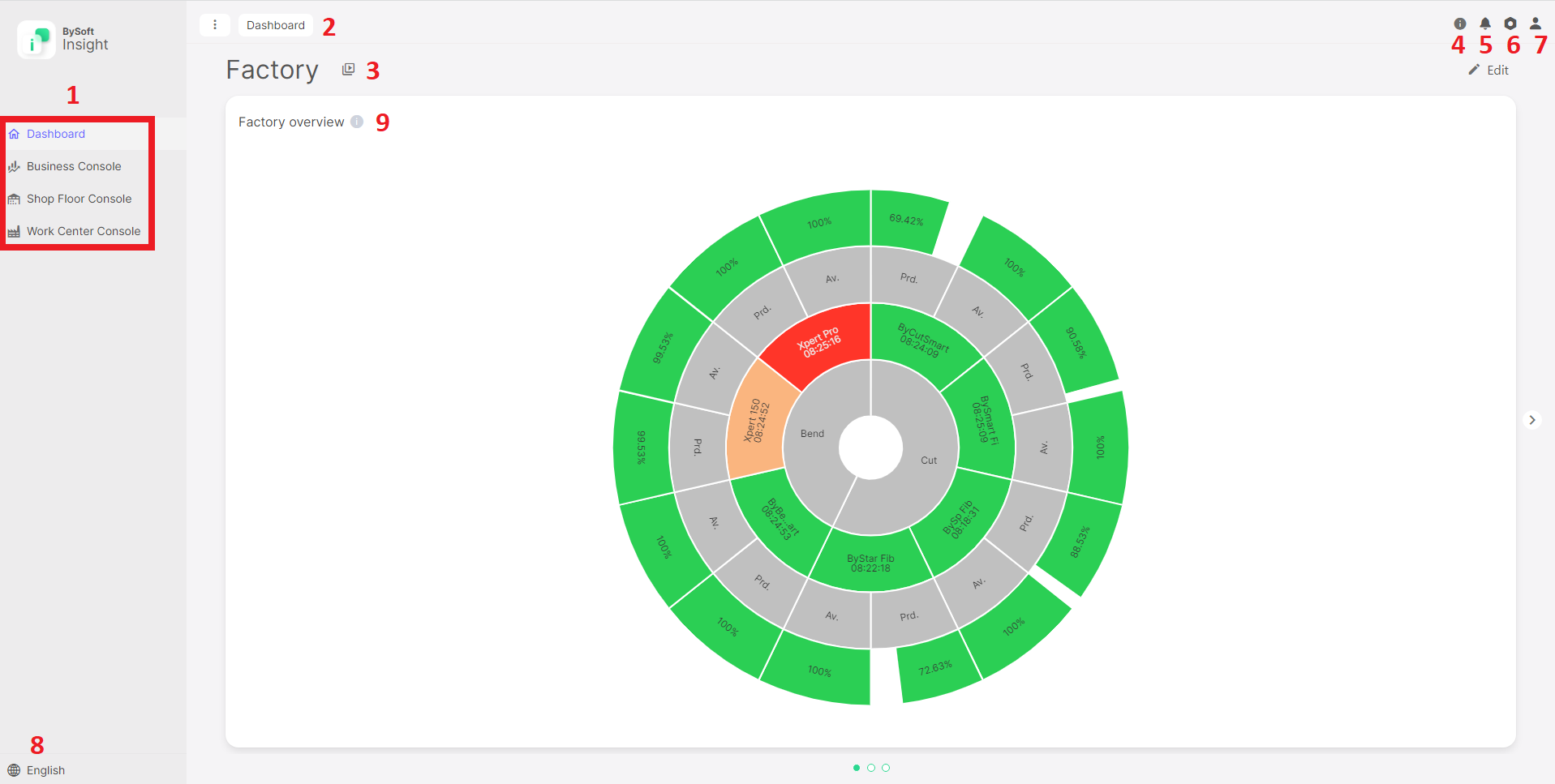
| 1 | The navigation panel allows you to switch between the different consoles, such as the Business Console and the Work Center Console. |
| 2 | The current window can be identified by looking at the page header. |
| 3 | The main window displays the widget views, the setting screens, etc. In the image above, you can see a custom Dashboard as an example. |
| 4 |
By clicking here, you can access the BySoft Insight User guide and the Terms and Conditions. |
| 5 | This icon shows the number of received notifications. When clicked, it shows the details of the notification. |
| 6 | Settings: customers, users, devices, etc. |
| 7 | User account-related actions, such as logging out and, if available, resetting the password. |
| 8 | Language selection. |
| 9 | Factory overview. A brief explanation of the operation and information on the corresponding colors. |